
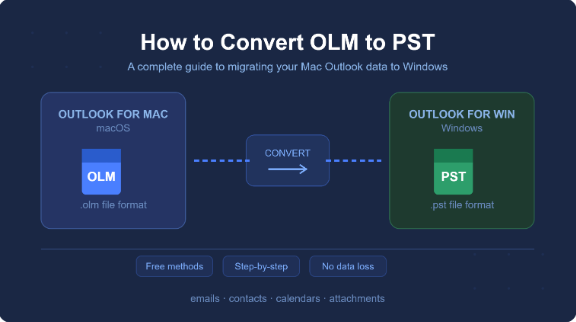
If you’ve switched from a Mac to a Windows PC, or you’re moving from Outlook for Mac to Outlook for Windows, you’ve probably hit a wall: your emails, contacts, and calendar are locked in an OLM file, and Windows Outlook has no idea what to do with it. This guide walks through what an OLM file actually is, why it can’t just be opened in Windows, and the different ways to convert it to a PST file that Outlook for Windows can read.
What Is an OLM File?
OLM is the data storage format used by Outlook for Mac. It holds everything in your mailbox: emails, attachments, contacts, calendar events, notes, and tasks. When you export a Mac Outlook mailbox for backup or transfer, it comes out as a single .olm file.
The problem is that Outlook for Windows uses a completely different format called PST (Personal Storage Table). The two formats aren’t interchangeable, so an OLM file simply won’t open in Windows Outlook without conversion.
Why You’d Need to Convert OLM to PST
A few common situations push people to make this switch:
- Switching from a Mac to a Windows machine and wanting to keep your full mailbox history
- A company standardizing on Windows and Outlook for Windows across the team
- Needing to archive or back up a Mac Outlook mailbox in a Windows-compatible format
- Migrating mailbox data into Exchange, Office 365, or another PST-based system
Ways to Convert OLM to PST
1. Manual Method (IMAP Sync)
If both your Mac and Windows machines can connect to the same IMAP account, you can sync your mailbox through the server instead of converting the file directly: set up the account in Outlook for Mac, let it sync fully, then add the same account in Outlook for Windows and let it download everything fresh. This works, but it’s slow for large mailboxes, doesn’t reliably carry over calendar items or notes, and depends entirely on your email provider supporting IMAP the same way on both ends.
2. Free Online OLM to PST Converters
For smaller mailboxes, an online converter is the fastest option since there’s nothing to install. You upload the OLM file, the tool converts it in the browser, and you download a ready-to-use PST file. Stellar’s free OLM to PST converter is a good example: it’s a straightforward three-step process (upload, convert, download), keeps your original folder structure intact, runs on Windows, macOS, and Linux through the browser, and encrypts uploads over SSL. Free conversions are capped at 100 MB and one file at a time, and files are auto-deleted from the server after 24 hours for privacy. It supports Outlook for Mac versions from 2011 through 2021, so it covers most setups still in use.
This is the right call when you’re converting a single, moderately sized mailbox and don’t want to install anything.
3. Desktop Software for Larger or Bulk Conversions
If your OLM file is larger than 100 MB, or you need to convert several mailboxes at once, a desktop tool is the more practical route. Stellar Converter for OLM can handles files up to 5 GB and up to five files in a single batch, which matters if you’re migrating an entire team rather than one inbox. Desktop tools also tend to offer more control over the conversion, since the file never has to be uploaded anywhere.
What to Check Before You Convert
- File size: confirm whether your OLM file fits within a free tool’s limit, or if you’ll need a paid option.
- Folder structure: make sure the tool preserves your existing folder hierarchy rather than dumping everything into one inbox.
- Data privacy: if you’re uploading a mailbox with sensitive information, check that the service uses encryption and deletes files after conversion.
- Outlook version compatibility: verify the tool supports the specific version of Outlook for Mac your OLM file came from.
Final Thoughts
Converting OLM to PST isn’t complicated once you know which method fits your situation. For a single mailbox under 100 MB, a free online converter gets the job done in minutes with no installation. For larger files or bulk migrations, desktop software is the more reliable choice. Either way, the goal is the same: get your Mac Outlook data into a format Windows Outlook can actually open, without losing folders, attachments, or history along the way.